WxCC Day 1 Settings Tweaks
This page contains a list of recommended setup tweaks for Webex Contact Centre that the CCEP team use during our managed customer trials.
Unless stated otherwise, all settings should be carried out from Control Hub, under the Contact Center Menu.
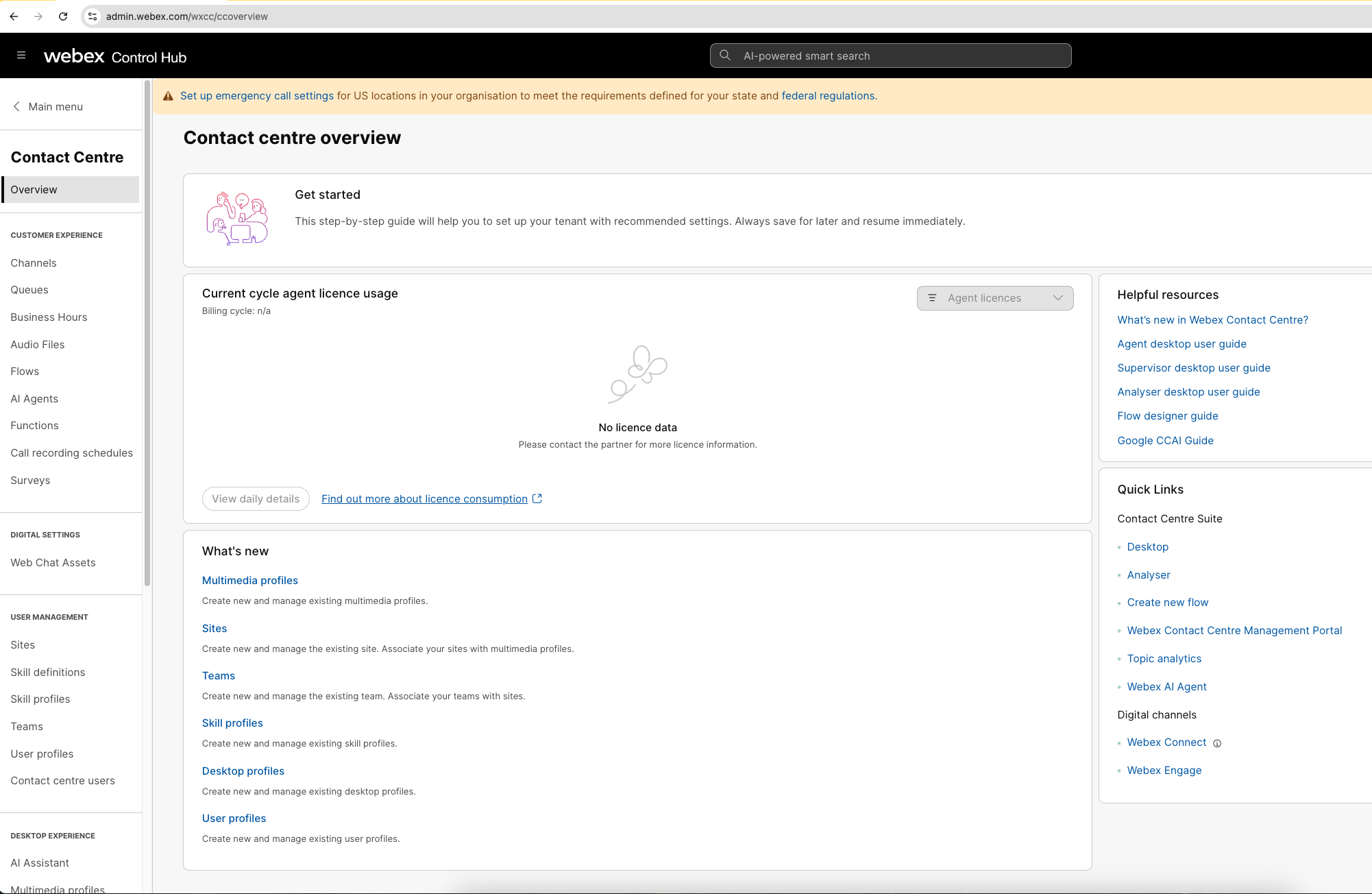
Desktop Experience —> Idle/Wrap-up Codes:
- Change default Idle code to “New Sign In” and remove the description
- Add Idle Codes - On Phone Call, Lunch, Meeting, 15 Minute Break, Supervisor Escalation Path, Meeting
- Change default Wrap Up Code to “No Wrap Up Selected” / remove description
Tenant Settings —> Desktop
- Inactivity Timeout enabled, set duration to 480 Minutes
- Enable End Call - turn slider ON
- RONA Timeout for Telephony - 12 seconds
- Webex App - Turn State Synchronization ON
- Set On a Call to “On Phone Call” idle code
- Set all others to “Do Not Sync”
User Management —> Sites
- Change Site Name from Site-1 to customer name
User Management —> Teams
- Add new team, call it “IT Service Desk” or similar, select Parent Site, select Agent Based
Customer Experience —> Queues
- Open the default Inbound Queue
- Rename it to something appropriate to your use case
- Remove Description
- Scroll Down to Contact Routing Settings and click on the pencil icon under the group, uncheck the default team and check “IT Service Desk” team you created earlier, save
- Verify “Permit Monitoring” turned on
- Verify “Pause/Resume Enabled” turned on
- Set Maximum time in Queue to 86400
- Set Default Music in Queue to defaultmusic_on_hold_cisco_opus
User Management -> Teams
- Open the default team that the system created
- Slide the “active” slider to off (upper right)
- Click trash can to delete
Customer Experience —> Business Hours
- Create Working Hours, give it an appropriate name, example “M-F0800-1800_Eastern”
- Set schedule / define working hours
Tenant Settings —> Integrations
- In the Webex Contact Center panel, choose "Set Up"
- Name Connector “API_RW”
- Read-Write Access
- Authorize and finish